Style Guide

How to... Web Essentials

Font Styles

Styles Size Color/HEX Color

H1 Title

50px Dark gray #272727

H2 Title

42px

Dark gray #272727

H3 Title

36px

Dark gray #272727

H4 Title

30px

Dark gray #272727

H5 Title

14px

Black #292929

H6 Title

12px

Black #292929

Body/Paragraph

14px

Gray #666666

Hyperlink

[dictated by brand colors]


How to...

The font type & size is controlled through your website's theme. To keep styles consistent throughout your site, use the Paragraph dropdown menu in the WYSIWYG ("What You See is What You Get") editor:

 fonts


Note

  • H1 titles, found on interior page main banners, should be reserved for SEO & web accessibility purposes

Table Styles

Style CSS Wrapper Class
default table default / no CSS class
plain table plain-table

How to...

The default table styling is alternating white and gray lines. 

To create a simple table, add the CSS Wrapper Name plain-table to the content item:
plain table class


Note

  • best practice: unless specifically for data, avoid using tables as they are not mobile friendly

Button Styles

Options CSS Wrapper Class

Primary Button

make-buttons

Secondary Button

make-buttons secondary-buttons

Gray Button

make-buttons gray-buttons

Primary Outline Button

make-buttons primary-outline-buttons

White Button

make-buttons white-btn

White Button

make-buttons white-outline-buttons


How to...

Start by creating a regular text link. Next, highlight and italicize the text that was just hyperlinked:example button

To enable the design, add a make-buttons class to CSS Wrapper Class Name field:
button class

Save (Publish).


Note

  • you'll need to Preview or Publish to see the button (styling does not appear in editing mode)
  • if the button styling does not appear, check the HTML source code, the italic emphasis <em> tag must live outside the hyperlink <a> tag to enable styling
  • example: <em><a href="http://website.com">Button Example</a></em>

Image Management

Component Minimum Recommended Size
public homepage hero or slider: 554 W x 407 H
image tile (3): 379 W x 200 H
image tile (4):   266 W x 200 H
CTA images: 554 W x 407 H
Featured Card - Single Banner: 1200 W x 300 H
Featured Card - Hero: 1200 W x 600H

Note

Occasionally, after uploading and inserting an image, the image may be missing a snippet of code that would automatically resize it. If your image is too large and your layout looks off:

  • open the HTML Content Item that houses the image
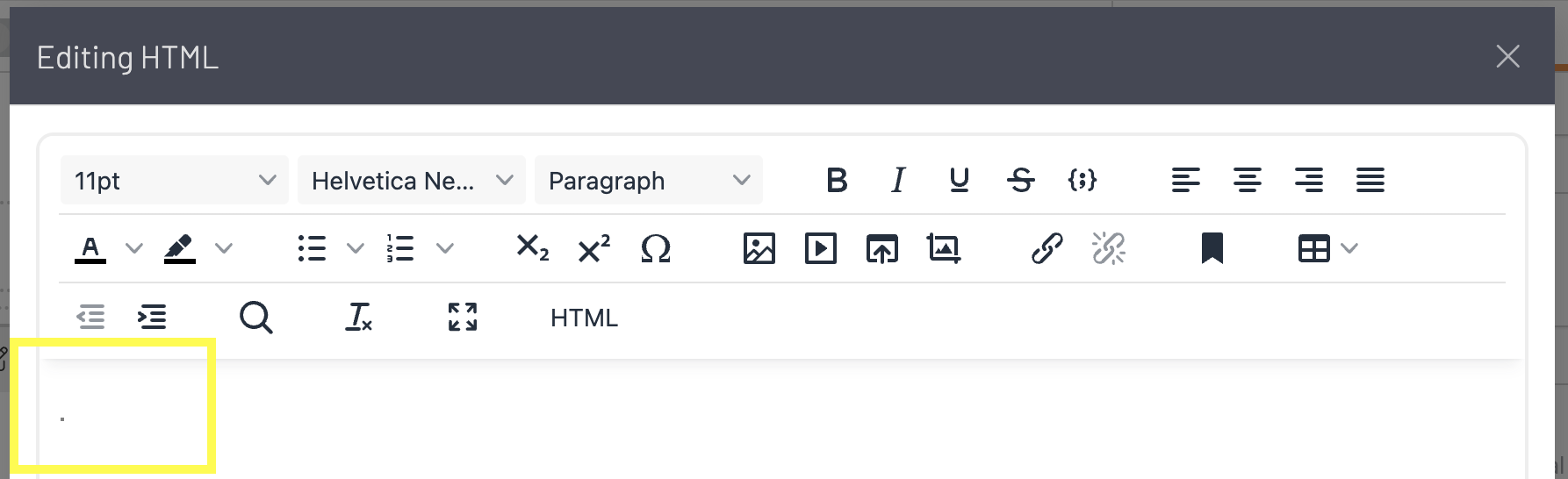
  • next, open the WYSIWYG editor and click on HTML 
    html
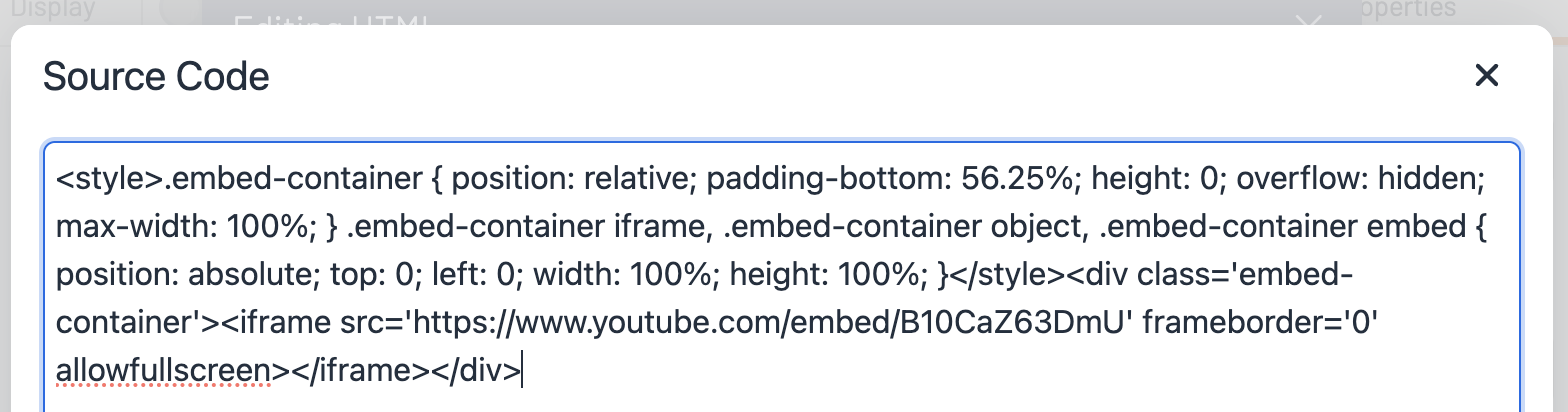
  • in the the Source Code window, insert the following code, class="img-responsive"
    source code

dog and computer

How to... Web Essentials

Font Styles

Button Styles

Table Styles

Image Management

Embed a Video Clip


Free Assets & Resources

Stock images – Unsplash, Pexels

Online photo editor – iPiccy

Web Icons – Font Awesome

Helpful Links

Slick Documentation: Here

CSS Tricks Guide to Flexbox: Here

Training Recording

Link: Here

Password: P8k$&y3&